If you’re buying a used Android phone, it’s important to know how old the device is. There are a few ways to check the age of your smartphone, and you don’t need to be an expert to do it. Follow our instructions and hints, and you’ll be able to find out how old your Android is.
Through Serial Number
The serial number of your device can be found in the settings menu. To find it, go to the “About phone” section and scroll down to the “Serial number” field. The manufacturing date can be found by decoding the serial number.
To find your phone’s serial number, go to the Settings menu and select the “About phone” option. The serial number will be listed here.
You can also find out the serial number of your Android device by using ADB Shell Commands. This is a special tool that allows you to get more information and perform actions on your Android device. To find out the serial number of your Android device, enter the command shown below in the image.
If you’re having trouble finding your Android device’s serial number, there’s another way. Believe it or not, the serial number is actually printed on the back of your phone or tablet’s panel. You’ll just need a magnifying glass to read it, as the font is quite small.
Now you have the serial number for your smartphone. The next step is to use a special website to decipher it. For example, SNDeepInfo. This website can tell you a lot more than just your smartphone’s age and release year. Before breaking down the serial number, be sure to pick the correct smartphone model on the website.
Through Google Dashboard
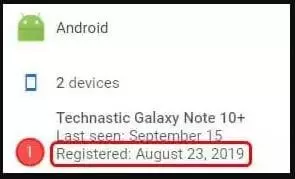
If you know your Google account credentials, you can check the Android activation date by going to Google Dashboard. There you can also find additional information, such as the date of registration for your smartphone. You can also rename your device on Google Dashboard, and of course find the serial number. With the serial number, you can also check if your phone is stolen or not.
Through Google Play Store
The Google Play Store can help you determine the unboxing date of your smartphone. To do this, open your account settings and look for the registration date in the “My device” tab. This date will tell you when your device was first unboxed and registered with Google Play.
You now know how to discover the age of your Android device quickly and effectively. Nobody can deceive you now.
Meet Herry White, the passionate tech enthusiast and driving force behind FreeAppsForYou.com. With a deep-rooted love for all things mobile apps, Herry’s journey began in the school days when he first laid hands on a smartphone. From that moment on, he was captivated by the endless possibilities that these pocket-sized wonders offered.