Encountering a “Download pending” error when attempting to install an app from the Play Market can be frustrating and hinder your ability to quickly acquire necessary apps.
Content
Fortunately, this technical issue can be resolved with the appropriate solutions.
In this guide, we will explore various methods for resolving the download pending error in 2023. With this knowledge, you’ll be able to quickly address the error should it occur again.
Reboot Your Device
The easiest solution to the download pending error is to simply reboot your mobile device. It is important to ensure that all running apps are closed before restarting.
If the error was caused by a minor glitch, rebooting should resolve the issue. However, if the error persists, it is recommended to try the other methods listed below.
Check Your Internet Connection
Having a stable internet connection is crucial for installing any app, and it is important to ensure that there are no issues with connectivity.
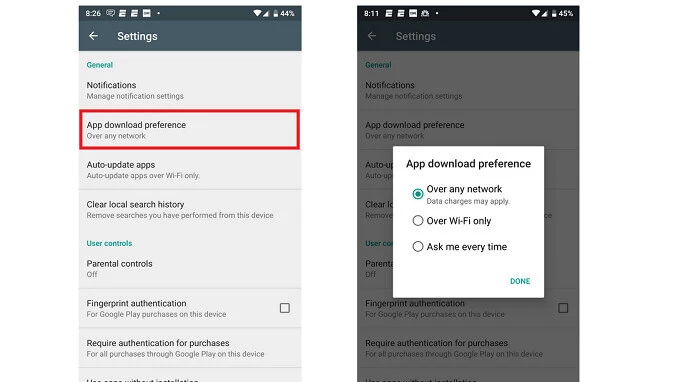
If you are using Wi-Fi and experience a disconnection, you can switch to mobile data. However, it is essential to confirm that there are no app installation restrictions enabled.
Follow these steps:
Switch from Wi-Fi to mobile data
Open the Play Market
Navigate to the Settings menu
Access the “App download preferences” option
Choose “Over any network”
You can also switch to Wi-Fi if your mobile web connection is unstable.
Disable Your VPN Application
Using a VPN service while attempting to install an app from the Play Market can increase the likelihood of encountering a download pending issue.
This is because the Play Market may become confused by your location, causing the app to get stuck during installation.
Additionally, the use of a VPN can result in decreased internet speed, which can also contribute to the error. If this issue occurs, simply turn off your VPN before attempting to install any app.
Increase Your Internal Storage Capacity
It is well-known that the performance of your mobile device can be impacted by the amount of available storage space.
A cluttered internal storage can lead to system slowdowns, bugs, and errors such as the install stuck issue.
To resolve this, it is recommended to free up some storage space before attempting to install another app on your device.
Here’s how you can do it:
Access your mobile device’s settings
Navigate to the “Storage” section to view storage details
If the amount of free space is low, delete any unnecessary files to free up space.
Stop All Current Downloads and Updates
One reason for encountering the install pending error on the Play Market is due to an overload of ongoing updates and installations.
To resolve this issue, it is recommended to cancel any unnecessary updates or installations and prioritize the app you wish to download.
To check if this issue is occurring, open the Play Market app and navigate to the “My apps and games” section in the menu.
If there are any apps currently installing or updating, cancel them to free up system resources and proceed with the desired app installation.
Turn Off Auto Updates
To prevent the occurrence of the download pending error, it is advisable to disable the auto-update feature in the Play Market app.
This will prevent apps from being updated automatically without your consent and may also help conserve memory on your device.
Here are the steps to disable the auto-update feature in the Play Market app and prevent apps from being updated automatically:
Open the Play Market app
Tap on the menu
Navigate to the settings
Select the “App Updates” section
Tap on “Automatically update apps”
Choose “No”
Enable Data Usage in the Background
It may seem odd, but it’s possible that your Play Market is unable to access complete data in the background. While this doesn’t necessarily imply that apps won’t be installed in the background, it can result in errors.
Open your mobile’s settings
Tap on Data Usage
Find and tap on Data Saver
Select Unrestricted Data
Scroll down until you find the Play Market app and turn on the switch
If this method fails, don’t worry too soon, as there are still a few more solutions to try below.
Clear Your Play Store Cache
The Play Market app, like others, stores data on your mobile device. This stored data can cause issues with app installations, including the “install pending” problem. The solution is simple: clear the app cache.
Here’s how you can clear the play store’s cache:
Go to your mobile settings
Find the “Apps & notifications” section
Look for the Google Play Store app
Tap on “Storage”
Select “Clear Storage” and then “Clear Cache”
Roll Back Play Store Updates
To fix the install pending problem caused by the recent Play Market update, you can roll back the update. This method only works if the issue appeared after the update.
Go to the settings
Select “Apps & notifications”
Choose the Play Market app
Tap on the three dots and select “Uninstall updates”
When prompted, tap “OK” to confirm
Switch Your Google Account
To resolve the issue if it persists, you can switch to a different Google account.
Here’s how you can do it:
Open Settings
Go to Accounts and Sync
Find the Play Store app and select it
Tap on Remove Account
Restart your device
After restarting, go back to Settings > Accounts and Sync
Tap on Add Account
Follow the on-screen instructions to add your account back to the Play Store app.
After performing the previous steps, repeat the instructions but select “Add account” instead of “Remove account.”
Install Apps from Play Store via Browser
Another solution to fix the installation stuck issue is to try installing apps through your web browser. Simply access the Play Store through your browser, log in to your account, find the app you want to install, and click on the Install button.
You may be asked to verify your account once again. Next, select your device’s model from the list of all devices associated with your Google account. The app should then install on your device without any problems.
Meet Herry White, the passionate tech enthusiast and driving force behind FreeAppsForYou.com. With a deep-rooted love for all things mobile apps, Herry’s journey began in the school days when he first laid hands on a smartphone. From that moment on, he was captivated by the endless possibilities that these pocket-sized wonders offered.