Clear Cache on iPhone is essential for maintaining optimal performance and freeing up storage space. In this guide, we will explore what cache is, why it is important to clear it, and provide step-by-step instructions for various methods to effectively manage cache on your device.
Content
Understanding Clear Cache on iPhone
Cache refers to temporary files stored by applications and browsers to speed up their functionality. These files can include images, audio, and web browsing history, which help applications load faster and enhance user experience. However, over time, accumulated cache can lead to performance issues, including slow app loading times and reduced storage capacity. Regularly clearing cache can improve device responsiveness and help manage storage effectively.
Table 1: Benefits of Clearing Cache
Benefit
Description
Enhanced Performance
Increased speed and responsiveness of applications.
Storage Recovery
Frees up space occupied by temporary files.
Issue Resolution
Fixes problems caused by outdated or corrupt cached data.
Clearing Cache on iPhone
Clearing App Cache
Method 1: Through Settings
To clear the cache of individual applications, follow these steps:
Open the Settings application on your iPhone.
Navigate to General.
Select iPhone Storage.
Find the application you wish to clear and tap on it.
Choose Offload App. This action will free up storage while keeping your documents intact.
Method 2: Deleting and Reinstalling Apps
If an application does not provide a direct way to clear cache on iPhone, you can delete and reinstall it. Here’s how:
Press and hold the application icon until options appear.
Tap on Remove App and confirm by selecting Delete App.
Reinstall the application from the App Store. Note: This method may result in loss of unsaved data.
Clearing Safari Cache
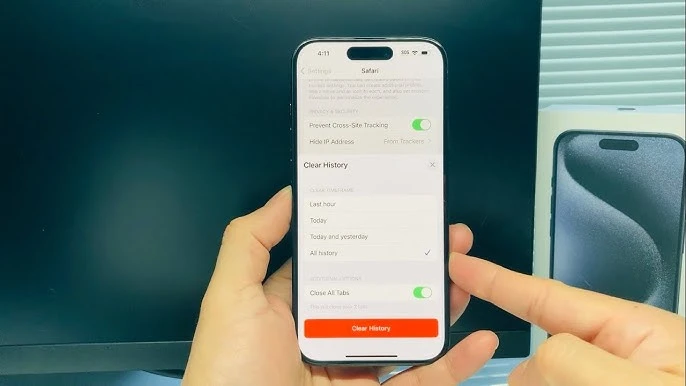
To clear the cache in Safari, do the following:
Open the Settings application.
Navigate to Safari.
Scroll to the bottom and select Clear History and Website Data.
Confirm by tapping Clear History and Data.
Clearing Cache in Other Browsers (Chrome)
If you use Google Chrome on your iPhone, follow these steps:
Open Google Chrome.
Tap the three-dot icon at the bottom right corner.
Select History.
Tap on Clear Browsing Data.
Choose the time range and check Cached Images and Files, then tap Clear Browsing Data.
Table 2: Cache Clearing Methods
Method
Description
Implications
Settings Offload App
Offloads app data while keeping documents.
Minimal data loss.
Delete & Reinstall
Deletes app and reinstalls from the App Store.
Potential data loss if not backed up.
Safari Clear History
Clears cache and browsing history in Safari.
Logs you out of websites.
Chrome Clear Browsing Data
Removes cached files from Google Chrome.
May affect saved login information.
Tips for Efficient Cache Management
To keep your iPhone running smoothly, it is advisable to clear cache regularly. A recommended frequency is once a month, as this helps maintain optimal performance and frees up valuable storage space.
Utilizing the Offload App feature can assist in automatically removing less-used applications without deleting app data. This can help manage storage effectively without losing important information.
Additionally, regularly assessing your applications and removing those that you no longer use can contribute to cache management and free up additional storage.
Boosting iPhone Performance
Beyond clearing cache, consider general storage management strategies such as:
Managing Photos and Videos: Regularly back up and remove unnecessary media files to save space.
Using Cloud Services: Store files in the cloud to reduce local storage usage.
While iOS does not offer a built-in cache cleaner, various third-party applications are available that can assist in clearing cache and optimizing storage.
A simple restart of your iPhone can also help clear temporary files and improve overall performance.
Frequently Asked Questions (FAQs)
Will clearing cache delete my data?
No, clearing cache does not delete your important data, such as photos or contacts. It only removes temporary files.
How often should I clear my cache?
It is advisable to clear your cache at least once a month to maintain your iPhone’s performance.
Can I clear cache for all apps at once?
Unfortunately, you cannot clear the cache for all applications simultaneously on iPhone. You need to do it for each application individually.
Does clearing cache affect app settings?
No, clearing cache does not affect your app settings or preferences; it only removes temporary files.
Conclusion
Regularly clear cache on iPhone is essential for keeping your device fast and ensuring you have enough storage. By following the methods outlined in this guide, you can effectively manage your cache and enhance your iPhone’s performance. Don’t hesitate to share your experiences or ask questions in the comments below!
Meet Herry White, the passionate tech enthusiast and driving force behind FreeAppsForYou.com. With a deep-rooted love for all things mobile apps, Herry’s journey began in the school days when he first laid hands on a smartphone. From that moment on, he was captivated by the endless possibilities that these pocket-sized wonders offered.