If you have ever sent an email and immediately regretted it, you’re not alone. Whether it’s a typo, sending to the wrong recipient, or attaching the wrong file, we’ve all been there. Microsoft Outlook for Mac provides a feature that allows you to recall emails, potentially saving you from embarrassment or confusion. In this guide, we’ll walk you through the steps to recall an email in Outlook for Mac and discuss some important considerations.
Content
Understanding the Need to Recall Emails
Emails are a crucial means of communication in both personal and professional settings. However, mistakes can happen, leading to unintended consequences. Whether it’s sending sensitive information to the wrong recipient or realizing an error in the content of the email, the ability to recall an email can be invaluable.
Limitations of Recalling Emails
It’s essential to understand that recalling an email is only sometimes foolproof. Once an email has been sent, several factors come into play that may affect the success of the recall. For example, if the recipient has already opened the email, the recall attempt may fail. Additionally, email systems outside of your control may not support the recall feature, further complicating the process.
Steps to Recall an Email in Outlook for Mac
Step 1: Launch Outlook on your Mac
Begin by opening Microsoft Outlook on your Mac computer. Ensure you are logged into the correct account from which you sent the email you wish to recall.
Step 2: Navigate to the Sent Items folder
Locate the “Sent Items” folder in the navigation pane on the left side of the Outlook window. Click on it to view a list of emails you have sent.
Step 3: Open the email you want to recall
Find the email you wish to recall from the list in the “Sent Items” folder. Double-click on it to open it in a new window.
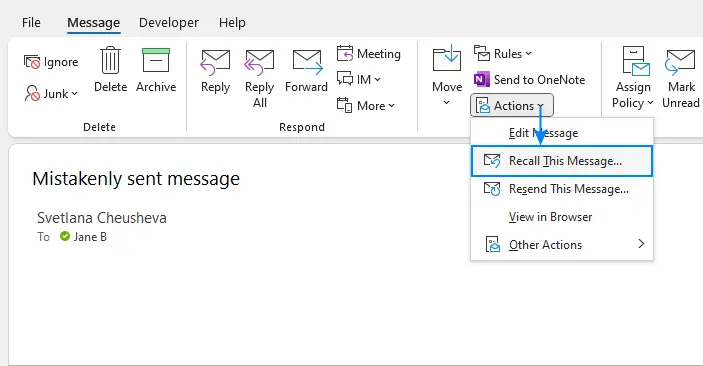
Step 4: Click on the “Actions” menu
In the toolbar at the top of the email window, click on the “Actions” menu. This will display a dropdown menu of options.
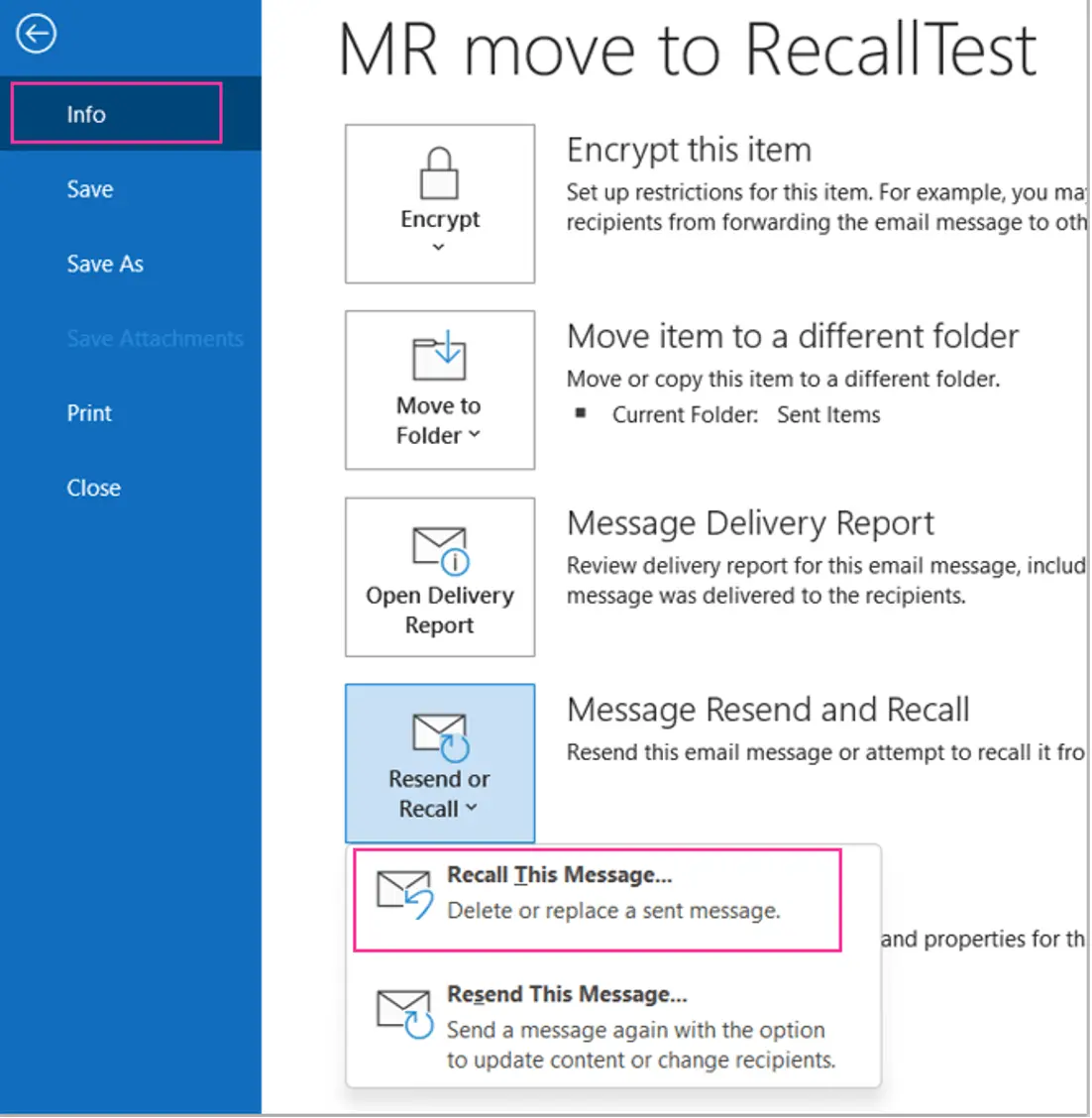
Step 5: Select “Recall This Message”
From the dropdown menu, select the “Recall This Message” option. A dialog box will appear with further instructions.
Step 6: Choose recall options
In the recall dialogue box, choose whether to delete unread copies of the email, replace them with a new message, or both. You can also choose to receive notifications about the recall attempt’s success or failure.
Step 7: Confirm the recall
Click “OK” to confirm the recall and initiate the process. Outlook will attempt to recall the email according to your selected options.
While recalling an email can be a lifesaver in certain situations, it’s essential to take proactive steps to minimize the need for recalls in the first place. Double-checking email recipients, attachments, and content before hitting send can help prevent errors that may demand a recall later on.
Conclusion
Recalling an email in Outlook for Mac can be a valuable feature for correcting mistakes or preventing unintended consequences. By following the steps outlined in this guide and understanding the limitations of the recall process, you can navigate email mishaps with confidence.
FAQs
Can I recall an email if the recipient has already opened it?
It depends on several factors, including the recipient’s email system and settings. In some cases, the recall attempt may fail if the email has already been opened.
Does the recall feature work for all types of email accounts?
The effectiveness of the recall feature may vary depending on the recipient’s email system and settings. It’s best to double-check the success of the recall attempt if possible.
Is there a time limit for recalling an email in Outlook for Mac?
The sooner you attempt to recall an email after sending it, the higher the chances of success. However, there is no specific time limit for recalling emails in Outlook for Mac.
Meet Herry White, the passionate tech enthusiast and driving force behind FreeAppsForYou.com. With a deep-rooted love for all things mobile apps, Herry’s journey began in the school days when he first laid hands on a smartphone. From that moment on, he was captivated by the endless possibilities that these pocket-sized wonders offered.