Mastering Android Screen Recording: Best Apps and How to Use Them
Android screen recording has become a crucial tool for many mobile users, whether it’s for creating tutorials, capturing gaming highlights, or troubleshooting issues. This feature enables users to capture everything happening on their device screen in video form. In this article, we’ll explore the best apps for Android screen recording, such as XRecorder, Mobizen Screen Recorder, and ADV Screen Recorder, as well as tips for optimizing your screen recording experience.
Content
What is Android Screen Recording?
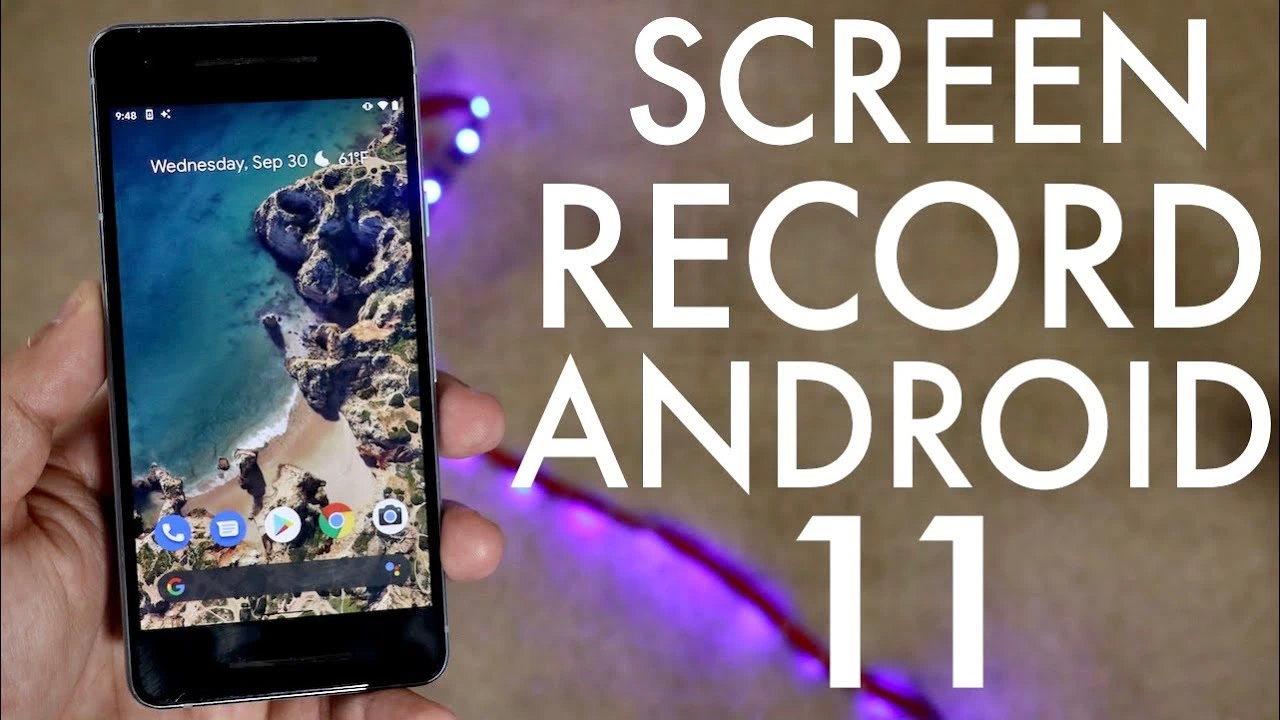
Android screen recording is a feature that allows users to capture video footage of their mobile device’s screen. This function is often used to record app interactions, gameplay, tutorials, or any other activity on the device. Starting with Android 11, Google introduced a built-in screen recording feature, but many users still prefer third-party apps for more advanced features and customization. Whether you’re recording a how-to video or capturing gaming content, Android screen recording has become a go-to tool for creators and professionals alike.
Best Apps for Android Screen Recording
XRecorder: A Feature-Rich Screen Recording Solution
XRecorder is one of the most popular third-party apps for Android screen recording. It allows users to record high-definition videos without a watermark, making it a top choice for content creators and those who require professional-quality recordings.
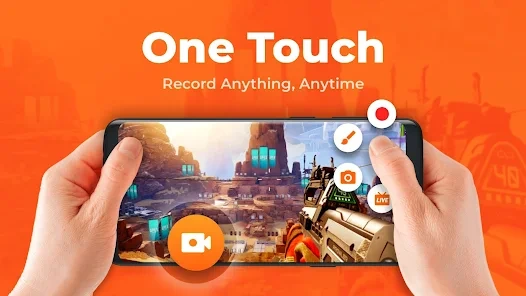
Key Features of XRecorder:
- No Watermark: Unlike many free screen recording apps, XRecorder does not place a watermark on recorded videos, making it perfect for high-quality content creation.
- Video Editing: The app offers built-in editing tools for trimming, merging, and adding music to recorded videos.
- HD Quality: Supports HD and Full HD recording for crisp visuals, even during high-action moments.

Pros:
- Easy to use
- High-quality recordings
- No watermark
Cons:
- Limited advanced editing options
- Some features require a premium version
Mobizen Screen Recorder: A User-Friendly Choice
Another excellent option for Android screen recording is Mobizen Screen Recorder. Known for its simplicity, Mobizen is often favored by gamers and casual users who need quick and effective screen recording capabilities.
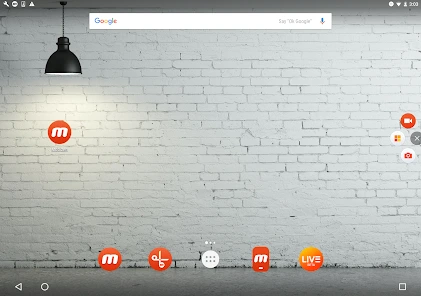
Key Features of Mobizen Screen Recorder:
- Full HD Recording: Records in Full HD resolution, ensuring that your screen captures are clear and professional.
- Facecam Feature: A standout feature for Mobizen is the ability to overlay a front-facing camera video while recording the screen, which is perfect for reaction videos and tutorials.
- Easy-to-Use Interface: Mobizen’s intuitive interface allows even beginners to start recording right away.

Pros:
- Simple and beginner-friendly
- High-quality video recording
- Allows facecam recording
Cons:
- Watermark in free version
- Limited customization options
ADV Screen Recorder: Simple but Effective
For those who want a no-frills approach to Android screen recording, ADV Screen Recorder is an excellent choice. It offers a streamlined experience for users who need basic recording functionality without any unnecessary extras.
Key Features of ADV Screen Recorder:
- Front and Rear Camera Support: Users can switch between the front and rear cameras while recording, adding an interactive element to their videos.
- Pause/Resume: One useful feature is the ability to pause and resume recording without interrupting the flow.
- Simple Interface: The app is designed to be minimalistic, allowing users to start and stop recordings with ease.

Pros:
- Simple to use
- No complex setup
- Multiple camera support
Cons:
- Lacks advanced features like video editing
- Watermark in free version
How to Record Your Android Screen
Using Android’s Built-in Screen Recording Feature
For devices running Android 11 and later, the built-in screen recording feature offers an easy way to capture video. Here’s a simple step-by-step guide on how to use it:
- Swipe down from the top of your screen to open the Quick Settings menu.
- Look for the Screen Recorder icon. If it’s not available, tap on the pencil icon to add it to your Quick Settings.
- Tap on Screen Recorder, then choose whether to record with audio or without it.
- Start recording, and stop when you’re done by tapping the Stop button in the notification.
You may like this: snapchat filter app
Using XRecorder for Advanced Features
XRecorder offers a variety of features that can take your recordings to the next level. Here’s how to use it:
- Download XRecorder from the Google Play Store and open it.
- Tap on the floating XRecorder button, then select the recording settings (resolution, bitrate, etc.).
- Tap Start Recording to begin capturing your screen.
- Once finished, tap the Stop button, and your video will be saved in your gallery.
Using Mobizen Screen Recorder
Here’s how to use Mobizen Screen Recorder:
- Install Mobizen from the Google Play Store and open the app.
- Adjust the settings, such as resolution and frame rate.
- Tap on the Record button to begin capturing your screen.
- Use the Facecam feature if you wish to record yourself while interacting with the screen.
- When finished, tap Stop to save the recording.
Using ADV Screen Recorder
ADV Screen Recorder is straightforward to use:
- Download ADV Screen Recorder and open the app.
- Press the Record button to start capturing your screen.
- Use the floating widget to pause, resume, or stop the recording.
- After stopping the recording, your video will be saved automatically.
Tips for Better Screen Recording on Android
To enhance your screen recording experience, here are a few tips:
- Adjust Settings for Optimal Performance: Ensure your phone’s performance is optimized for smooth screen recording by adjusting the resolution and frame rate settings.
- Use Audio Features Effectively: Enable internal audio and microphone recording for better sound quality, especially when recording tutorials or gaming content.
- Editing and Post-Processing: After recording, you can use apps like XRecorder or Mobizen to trim videos, add text, and make other edits before sharing.
Troubleshooting Common Screen Recording Issues
Here are a few common problems users face when recording their screens and how to resolve them:
- Low Frame Rate or Lag: If your recordings are lagging, reduce the recording resolution or close other apps that might be consuming system resources.
- Audio Sync Issues: If your audio doesn’t match the video, try using external audio recording apps or check your device’s audio settings.
- App Crashes or Freezes: If the screen recording app crashes, try clearing its cache, reinstalling the app, or updating your Android operating system.
Advanced Features for Power Users
If you’re a power user looking for more advanced features, these apps provide extra options:
- Facecam Recording: Apps like Mobizen and ADV Screen Recorder allow you to overlay your front camera while recording the screen. This is ideal for creating engaging content with live reactions.
- Custom Watermarks: For branding purposes, both XRecorder and Mobizen allow you to add custom watermarks to your recordings.
- Live Streaming: Certain apps, like Mobizen, allow you to stream your screen live to social media platforms, perfect for gamers and live tutorial creators.
Conclusion
In conclusion, Android screen recording is a powerful tool that can be used for a variety of purposes, from creating tutorials to capturing gameplay. Whether you choose XRecorder for its high-definition recordings, Mobizen Screen Recorder for its ease of use, or ADV Screen Recorder for its simplicity, each app offers unique features to suit different needs. By following the tips and guides provided in this article, you can start recording your Android screen like a pro.

Meet Herry White, the passionate tech enthusiast and driving force behind FreeAppsForYou.com. With a deep-rooted love for all things mobile apps, Herry’s journey began in the school days when he first laid hands on a smartphone. From that moment on, he was captivated by the endless possibilities that these pocket-sized wonders offered.